
Data & Analytics
Data Investigations - Part 3: Find The Break
Response Labs
January 13, 2023 · 5 minutes
Previously on Dr. Frankendata, we walked forwards and backward through the flow of data. While this step can uncover most issues, other problems can hide outside of the data trail. Those issues are not always easy to identify what’s wrong. This next step aims to expand our understanding of where and why the data is breaking. Let’s find the break by asking, “where does the data stop behaving?” Keep in mind that a data investigation doesn’t necessarily solve the problem. Especially if the issue ends up being bad data from an external file. You may not be able to do anything on your end to fix it.
Before we dive in, I’ll share a cautionary tale. I once crashed an active Abandoned Cart journey while investigating a few lines that weren’t personalizing correctly on an email. The journey was down for a full day before my team realized and we reverted to an older version of the email we knew worked. Lesson learned. For the sake of your career and your sanity as well as your clients, make copies of your projects, assets, files, etc. Work from the copies, not on anything live or in production. I add “_Investigation_date” or “Testdate” to my copies so I know and others know what I’m working on.
When Good Data Goes Bad
To find where the data stops behaving, there are two strategies that I’ve found to be particularly effective in my own data investigations:
- Check each variable name.
- Put QA checks in to see what your data looks like at each step.
1. Check each variable name
The first strategy can be a bit tedious, I admit. You’ll need to copy each variable/field name from your source and, using the ‘Find’ command, search for those instances within your source file. Then, repeat this process for other variables/fields and any naming variations.
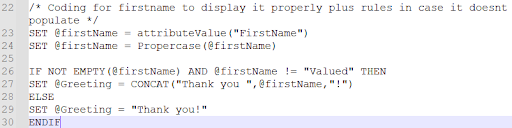
In the example above, we’d start with “FirstName,” as that’s the original source of the data on line 23. At the beginning of line 23, we see “firstName” used. Note, the f is lowercase. If we copy “firstName” and search for other instances:
- it shows up once on line 23 where it was created,
- it appears twice on line 24 where we use the propercase function to make the first name of a record be properly capitalized,
- twice on line 26 where there is a check to see if the “firstName” value is not empty or equal to “Valued” (This a common placeholder if a first name value isn’t found or available),
- and once on line 27 where it is used to create the phrase “Thank you Donna!” if it works right.
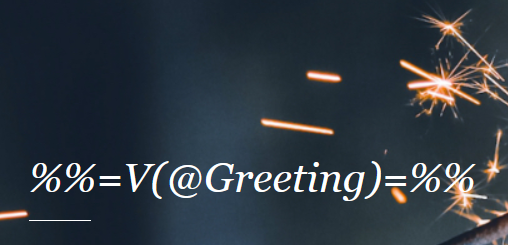
The most likely areas for this variable to break would be line 27 where it’s being called to display or line 24 where it’s being modified. But by going through this process, you can verify that the same variable name is being used consistently. The output would be something like this:

2. Put QA checks in to see what your data looks like at each step
In this case, we will “show” our work and what we are doing in each step. With the “Greeting” variable in the example above, say we want to see if the firstName variable was populating “Thank you, Donna!” If the output was only “Thank you!” we’d want to know why. Outlining each variable and displaying it should help us determine the break.
I usually select a conspicuous spot in the email HTML, such as the subject line or body content, and add a few line breaks <br> where I write code to display the values I want to test. The goal here is to outline each variable at each step of its transformation.
Here is an example of what I might write into the HTML:

For the Donna first name record, you would then get results like:
This line to show the raw output of the first name: Donna
This line to show the variable for first name being assigned as firstName: Donna
This line to show the greeting variable: Thank you, Donna!
By doing this, you’ll be able to see what the data looks like at each step, and hopefully, it is doing what it is supposed to do. Or if there is a break, it becomes evident that either ‘firstName’ or ‘Greeting’ are not working (or their equivalent).
This same concept can be applied to larger emails with significantly more complex transitions. Loops might have a few problems, but list the variables with specific comments to see how the data looks at each step.
But what about SQL, you say?
While the two strategies above are for in an email, the concept is similar for data behaving badly in SQL queries. If you have a larger query that isn’t outputting the results you expect, then there are three things to do:
- Check the source data to ensure it contains what you need.
- Check that you are grabbing the field names correctly.
- If you have subqueries or extra tables you are grabbing from, ensure each subquery is outputting what you expect. I recommend ripping out the subquery and running just that to ensure you get the records you expect.
Until Next Time…
In the next post, we’ll cover “try turning it off and on again.” It might sound cliché for an IT person to say, but in data investigations, we explore every possibility no matter how mundane.